
CalcSolver Online – Free Scientific Calculator & Code Mode
CalcSolver is a free scientific calculator that runs in your browser. It works out trigonometry, logarithms, roots, powers and factorials, and shows the answer while you type, so you catch mistakes before you press equals. Flip on Code Mode and the keypad takes 4-digit codes: 0000 opens the activity library. No download, no account.
Enter solveEsc clear^ powerCode Mode takes 4-digit codes
CalcSolver at a Glance
| Cost | Free |
| Install | None, it runs in your browser |
| Devices | Chromebook, laptop, phone, tablet |
| Functions | sin, cos, tan, inverse trig, log, ln, square and cube roots, powers, factorial, percent |
| Code Mode | 4-digit codes; 0000 opens the activity library |
| Your data | Stays in your own browser |
How to Use CalcSolver
Type your sum, check the live answer, then press Enter. It works the same with the on-screen keys or your keyboard.
- Type or tap your sum. The full expression stays on the top line, so you can read back exactly what you entered.
- Watch the grey answer. The result updates as you type. If it looks wrong, fix the sum before you finish.
- Press = or Enter. The answer turns bold and goes into your history.
- Keep going. Press an operator right after a result and CalcSolver continues from it. Need the last answer in the middle of a new sum? Tap Ans.
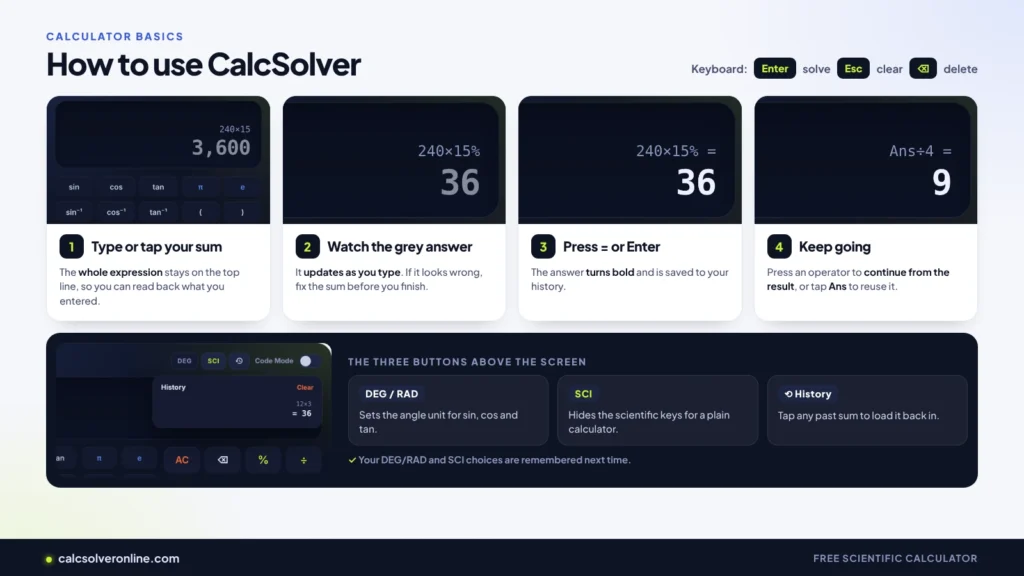
Three buttons sit above the screen. DEG/RAD sets the angle unit for trig. SCI hides the scientific keys when you only need a plain calculator, which helps on a small phone screen. The clock icon opens your history; tap any old calculation to load it back in. CalcSolver remembers your DEG/RAD and SCI choices for next time.
Every Key Explained
Here is what each key does, with an example you can type right now.
| Key | What it does | Example |
|---|---|---|
| sin, cos, tan | Sine, cosine and tangent of an angle | sin(30) = 0.5 in DEG |
| sin⁻¹, cos⁻¹, tan⁻¹ | Finds the angle from a ratio | sin⁻¹(0.5) = 30 in DEG |
| log | Logarithm, base 10 | log(1000) = 3 |
| ln | Natural logarithm, base e | ln(e) = 1 |
| √ and ∛ | Square root and cube root | √(144) = 12, ∛(27) = 3 |
| x² and xʸ | Square, or any power | 2^10 = 1,024 |
| 10ˣ and eˣ | Ten or e raised to a power | 10^3 = 1,000 |
| n! | Factorial of a whole number | 5! = 120 |
| |x| | Absolute value, drops the minus sign | abs(−7) = 7 |
| % | Divides the number before it by 100 | 240 × 15% = 36 |
| π and e | 3.14159… and 2.71828… | 2π = 6.28318… |
| Ans | Your last answer | Ans ÷ 4 |
| ⌫ and AC | Delete one character, or clear everything |
Two small things save time. You can leave out the × sign where you would on paper: 2π, 3(4+1) and 2sin(30) all multiply. And if you forget to close a bracket, CalcSolver closes it for you when you press =.
Keyboard Shortcuts
On a laptop or Chromebook you can do everything from the keyboard. These keys work whenever the calculator is on your screen.
| Press | To get |
|---|---|
| 0–9 and . | Numbers and the decimal point |
| + − * / | Add, subtract, multiply, divide |
| ^ | Power (2^8 = 256) |
| ( ) | Brackets |
| % and ! | Percent and factorial |
| s, c, t | sin(, cos(, tan( |
| l, n | log(, ln( |
| r | Square root |
| p | π |
| Enter or = | Solve |
| Backspace | Delete the last character |
| Esc | Clear everything |
The letter keys are the fastest way to reach functions. Press s, type 30, press Enter, and you get sin(30) = 0.5.
CalcSolver Code Mode: How 4-Digit Codes Work
Code Mode turns the keypad into a 4-digit code pad. Type 0000 to open the activity library, or type an activity’s own code to open that activity directly. Switch Code Mode off and the keypad goes back to normal maths.
Turning Code Mode On
Tap the Code Mode switch at the top right of the calculator. The screen swaps the numbers for four empty dots, and each digit you press fills one. After the fourth digit, CalcSolver checks the code. If it doesn’t match anything, the dots give a quick shake and clear, so you can try again.
Code 0000 Opens the Activity Library
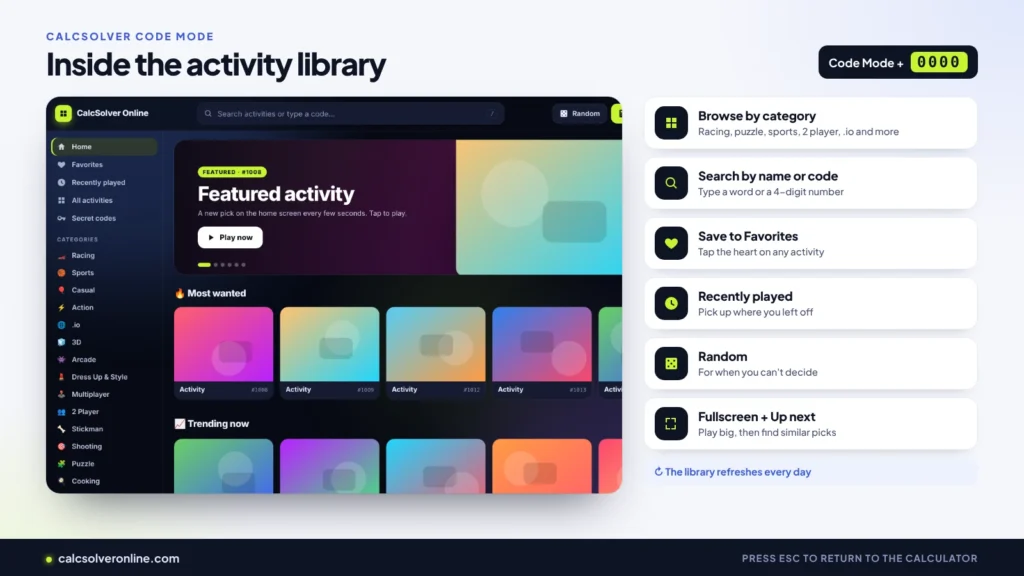
0000 opens the full library of free browser activities. Inside you can:
- Browse by category, such as racing, puzzle, sports, 2 player and .io
- Search by name or by code
- Save activities to Favorites with the heart icon
- Pick up where you left off in Recently played
- Hit Random when you can’t decide
- Go fullscreen, and find similar picks under Up next
The library refreshes every day, so new activities keep appearing.
Finding a CalcSolver Secret Code
Every activity has its own code, printed on its card. The Secret Codes section in the library lists the most played ones, and typing a number into the library search box finds every code that starts with it.
Codes on CalcSolver Online are permanent. Once an activity has a code, it keeps it, so a code you remember today still works next month. The full list is on our CalcSolver Codes page.
Getting Back to the Calculator
Press Esc and the library closes straight away. On a phone or tablet, tap the Calculator button in the top corner, or use your phone’s back button.
Degrees or Radians? The 5-Second Check
Type sin(30). If you see 0.5, you’re in degrees. If you see −0.988, you’re in radians. A wrong angle unit causes more wrong trig answers than anything else.
Use degrees for school geometry and most triangle problems. Use radians for calculus and physics, where angles are written with π (180° = π). Tap DEG/RAD to switch.
Worked Examples You Can Try
Each of these was typed into CalcSolver and the answer checked.
What Is 15% of 240?
Type 240 × 15% and you get 36. The % key turns 15 into 0.15, then it’s a normal multiplication.
How Do I Add 15% to a Price?
Type 200 × 1.15 to get 230. Typing 200 + 15% gives 200.15, because % only divides the 15 by 100; it doesn’t know you meant “15% of 200”. Phone calculators often treat this differently, which is where the mix-up comes from.
How High Does a Ramp Go?
A ramp is 10 m long and rises at 30°. In DEG mode, type 10sin(30). The answer is 5, so the top of the ramp is 5 m up.
Using the Last Answer
Type 12 × 3 and press = to get 36. Now type ÷ 4 and press = again. CalcSolver carries on from 36 and shows 9.
How Many Ways Can 5 People Line Up?
Type 5! and you get 120. A factorial counts arrangements: 5 × 4 × 3 × 2 × 1.
Why Your Answer Might Look Different
Most “wrong” answers come from the order of operations, the angle unit or rounding, not from the calculator. Here’s what CalcSolver shows and why.
| You type | CalcSolver shows | Why |
|---|---|---|
| −2^2 | −4 | The power comes first, then the minus. Type (−2)^2 to get 4. |
| 8 + 2 × 5 | 18 | Multiplication before addition (PEMDAS/BODMAS). Use (8 + 2) × 5 for 50. |
| 0.1 + 0.2 | 0.3 | Some calculators show 0.30000000000000004. CalcSolver tidies the display. |
| tan(90) in DEG | Error | tan 90° is undefined. |
| √(−4) | Error | A negative number has no real square root. |
| 171! | ∞ | The number is too large to store. 170! is the biggest that fits. |
Behind the screen, CalcSolver keeps every digit and only rounds what it shows you. That’s why 1 ÷ 3 × 3 comes back as exactly 1.
What CalcSolver Doesn’t Do
Knowing the limits saves you time. CalcSolver doesn’t:
- Solve equations for x
- Do calculus, such as derivatives or integrals
- Draw graphs
- Give answers as fractions (1/3 shows as 0.333333333333)
The calculator keeps working once the page has loaded. The activity library needs an internet connection.
For Parents and Teachers
The calculator works on its own, with no library and no account. The activity library only opens if someone turns on Code Mode and enters a code. It never pops up by itself.
The activities are free browser activities from a third-party provider, and some show short ads inside the activity. Calculations, history and favorites are stored only in the browser on that device, and nothing is linked to a name or account. Pressing Esc closes the library immediately.
CalcSolver vs a Phone or Handheld Calculator
| CalcSolver | Phone calculator | Handheld scientific | |
|---|---|---|---|
| Cost | Free | Free | One-off purchase |
| Install needed | No | Built in | No |
| Shows the whole sum | Yes, with a live answer | Usually only the result | Most models |
| History you can tap | Yes | Some apps | Limited |
| Full keyboard input | Yes | No | No |
| Allowed in exams | Check your rules | Usually not | Usually, if approved |
For an exam, use the handheld your school approves. For homework, revision and checking your working, CalcSolver shows you more and gets you there faster.
Step-by-Step Math Tools on CalcSolver
The calculator above works out any single sum. Some homework needs more than one answer, such as an exact fraction, a simplified root or a letter grade, so CalcSolver also has tools that each do one job and show every step.
Fractions and percentages: the Fraction Calculator adds, subtracts, multiplies and divides fractions and mixed numbers. The Fraction to Decimal Converter turns any fraction into a decimal and percent and marks the repeating digits. The Percentage Calculator finds a percent of a number, a percent change or the price before a discount.
Algebra: the Square Root Calculator gives the decimal and the simplest radical form, such as √50 = 5√2. The Quadratic Equation Solver finds exact roots and draws the graph.
Grades: the GPA Calculator works out weighted and unweighted GPA from your courses and credits. The Test Score Calculator turns points into a percent and a letter grade.
Numbers and rounding: the Scientific Notation Calculator converts very large and very small numbers both ways. The Rounding Calculator shows the same number under seven rounding rules, including the banker’s rounding that Python uses.
Popular CalcSolver Guides
Three reference pages to keep open while you work:
- Prime Numbers 1 to 100: all 25 primes in a chart, with the sieve that finds them.
- Square Roots 1 to 100: every root to three decimal places, with its simplest form.
- Fraction to Decimal Chart: halves to sixty-fourths, with millimetre values for sixteenths and thirty-seconds.
Frequently Asked Questions
What is CalcSolver?
CalcSolver is a free online scientific calculator. It solves trig, logs, roots, powers and factorials in your browser, with a live answer, history and keyboard shortcuts. People also type it as calsolver or calcsolve; it’s the same tool.
Is CalcSolver free?
Yes. The calculator, Code Mode and the activity library are all free. There’s no account, trial or download.
What does code 0000 do?
With Code Mode on, 0000 opens the activity library. Any other 4-digit code opens one activity. Press Esc to return to the calculator.
Where can I find calc solver codes?
On each activity card, in the Secret Codes section of the library, or on our CalcSolver Codes page. Codes never change.
Can CalcSolver solve calculus problems?
No. It doesn’t do derivatives or integrals. It handles the arithmetic, trig, logs and powers you need while you work through a calculus problem.
Does CalcSolver work on a Chromebook, iPad or phone?
Yes. It’s a normal web page, so it runs in Chrome, Safari, Edge or Firefox. The keys resize for small screens, and SCI hides the scientific keys when you don’t need them.
Are my calculations saved anywhere?
Only in your own browser. Calculations aren’t sent to our server, and you can clear your history from the history panel.
Why does tan(90) show Error?
In degrees, tan 90° is undefined, because cos 90° is zero and you can’t divide by zero. CalcSolver shows Error rather than a giant, misleading number.